
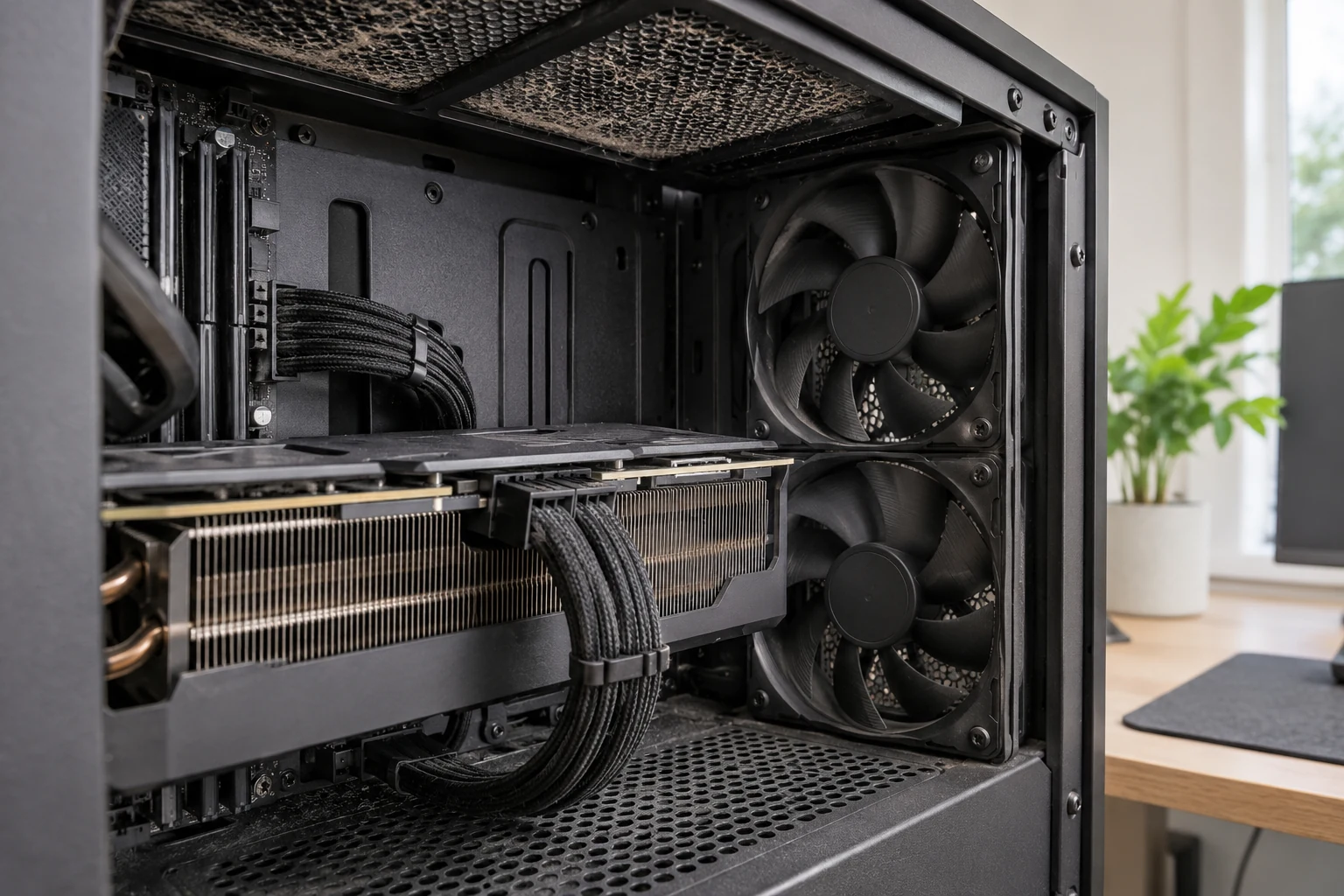
A game can report 140 frames per second and still feel jerky. A fast fibre connection can deliver poor online matches. A high-refresh-rate monitor can remain stuck at 60 Hz after being plugged in.
Diagnose the symptom before changing settings
The same word, “lag”, gets used for several unrelated faults. Match the behaviour to the measurement that can expose its cause.
| What you notice | Most useful measurement | First place to investigate |
|---|---|---|
| Constantly low FPS | Average FPS, GPU load and CPU activity | Resolution, rendering effects, CPU or GPU limit |
| Brief freezes despite good average FPS | Frame-time graph and 1% low FPS | VRAM pressure, asset streaming, shader compilation or background work |
| Mouse or controller feels slow | Input-to-display latency and refresh rate | V-Sync, render queue, TV processing and frame rate |
| Players teleport or actions register late online | Ping, jitter and packet loss | Wi-Fi, router congestion, ISP route and server region |
| Image looks blurry or shimmers in motion | Output resolution and image reconstruction mode | Render scale, upscaling preset, sharpening and anti-aliasing |
| Performance drops after 20 minutes | CPU/GPU clock speeds and temperature over time | Cooling, power limits and thermal throttling |
Build a repeatable baseline
- Choose one demanding but repeatable scene: the same map, save point, replay or built-in benchmark. Use the same resolution and graphics preset for every run.
- Record average FPS, 1% low FPS and frame times with an in-game display, a GPU performance overlay or a tool such as Intel PresentMon. Record the current graphics preset before adjusting anything.
- Watch GPU utilisation, per-core CPU activity, RAM usage, video memory (VRAM), clock speeds and temperatures. Windows Task Manager helps identify competing background processes.
- For multiplayer games, enable the network statistics display and note ping in milliseconds, jitter and packet loss during an actual match.
- Repeat the scene more than once. First launches, new areas and driver changes can trigger shader compilation or asset loading that does not represent steady play.
- Change one variable, repeat the same test and keep the change only when the measured result or image quality justifies it.
At 60 FPS, each frame has roughly 16.7 milliseconds to finish. At 120 FPS that budget falls to 8.3 ms; at 144 FPS it is about 6.9 ms. A sudden 40 ms frame remains visible as a hitch even when the average looks strong. The 1% low figure captures poorer-performing frames more usefully than a single minimum-FPS reading, though different benchmark tools calculate it differently.
A GPU sitting near full utilisation during a demanding scene suggests a graphics-side limit. Low GPU utilisation alongside poor FPS points towards a CPU, frame cap, power or software constraint, but one reading is not enough to diagnose it. A single busy CPU core can hold up the game while total CPU utilisation appears modest.
Which graphics settings make the biggest difference?
Start with the settings that carry a substantial rendering cost. Preserve image detail where the GPU has enough VRAM, and trade away effects that barely register during normal play.
| Setting | Useful starting point | Trade-off to watch |
|---|---|---|
| Resolution and render scale | Keep the display at native resolution; reduce internal render resolution through a quality upscaler when GPU-limited | Higher FPS can introduce blur, shimmering or weak distant detail |
| Ray tracing and path tracing | Lower or disable before sacrificing the entire image preset when frame times are too high | Reflections, shadows and lighting become less physically accurate |
| Shadows, reflections and ambient occlusion | Try Medium, then compare with High in the same scene | Fine contact shadows and reflective surfaces lose detail |
| Volumetric fog and lighting | Try Medium or Low in visually dense scenes | Atmospheric light shafts and fog lose precision |
| View distance and crowd density | Reduce when busy cities or crowded fights slow down a CPU-limited game | Distant objects and populations appear later or in smaller numbers |
| Texture quality | Keep High if VRAM comfortably holds the working set; reduce it if memory pressure causes streaming hitches | Surface detail becomes softer, especially close up |
| Anti-aliasing | Compare the game's TAA, FXAA, MSAA or native-resolution options | Edges, fine foliage and motion clarity change differently across engines |
| Motion blur, film grain and depth of field | Set by preference; disable distracting effects for fast-paced play | Cleaner presentation is not guaranteed to produce a large FPS increase |
Resolution is a powerful lever because 3840 × 2160 contains four times the pixels of 1920 × 1080. A 1440p screen sits between them and can balance clarity with workload. Lowering output resolution outright can make the whole desktop or interface look soft; an in-game render scale or temporal upscaler can preserve the interface at native resolution.
Increasing texture quality primarily uses memory rather than automatically imposing the same rendering cost as ray tracing. When VRAM is exhausted, the system can shuffle resources between graphics memory, RAM and storage, producing severe hitches. Watch for this pattern before reducing every visual setting.
Upscaling is not the same as frame generation
NVIDIA DLSS, AMD FidelityFX Super Resolution (FSR) and Intel Xe Super Sampling (XeSS) can reconstruct a higher-resolution image from fewer rendered pixels in supported games. Hardware support, available modes and image quality vary by game, graphics card and technology version. Start with a Quality preset, inspect movement and distant detail, and move to Balanced or Performance only when the frame-time gain is worth the loss in clarity.
Upscaling reduces rendering work. Frame generation creates additional displayed frames between frames produced by the game engine. Technologies such as DLSS Frame Generation, supported AMD FSR frame generation and Intel XeSS frame generation can improve perceived motion, but they do not make game simulation, mouse sampling or network updates occur at the displayed FPS. Generated frames also complicate comparisons between performance counters.
In a cinematic single-player game with an already comfortable base frame rate, frame generation can make camera movement appear smoother. For competitive Counter-Strike 2, VALORANT or Fortnite, prioritise native or upscaled rendering performance and measured response time before enabling it. Starting from very low base FPS leaves noticeable control delay and visual artefacts even when the displayed counter becomes impressive.
Use one primary upscaling method at a time. Combining a game's built-in upscaler with a separate driver-level resolution scaler can degrade image quality. AMD Radeon Super Resolution is an alternative for compatible games without a suitable built-in option. Frame generation and low-latency features must be supported by the particular game and GPU.
Set up Windows and graphics drivers without risky tweaks
Windows 11 settings worth checking
- Game Mode: open Settings → Gaming → Game Mode and test with it enabled. Its role is to manage competing system activity, not to create extra GPU capability.
- Graphics preference: open Settings → System → Display → Graphics. On a laptop with integrated and discrete graphics, assign the game to the high-performance GPU when automatic selection is wrong.
- Optimisations for windowed games: Windows 11 includes an option for supported DirectX 10 and DirectX 11 titles in windowed or borderless mode. It changes the presentation path and can reduce frame latency. Restart the game after changing it.
- Power mode: use Settings → System → Power & battery to select an appropriate plugged-in mode. A laptop on battery or in an efficiency profile can sharply restrict CPU and GPU performance.
- Display refresh rate: under Settings → System → Display → Advanced display, confirm that the screen is running at the intended 120 Hz, 144 Hz, 165 Hz or other supported rate rather than 60 Hz.
Hardware-accelerated GPU scheduling is another Windows setting that deserves an A/B test, not an automatic recommendation. Behaviour varies by GPU, driver and game. Record frame times before and after, restart when Windows requests it, and keep whichever configuration is more stable.
Use official GPU tools and per-game profiles
The NVIDIA app manages GeForce Game Ready drivers, graphics profiles, performance monitoring and supported DLSS options. AMD Software: Adrenalin Edition provides Radeon graphics profiles, FSR-related options, Radeon Anti-Lag, Radeon Chill, Radeon Boost and performance telemetry. Intel's graphics tools and drivers serve Arc and supported integrated GPUs. AMD Fluid Motion Frames (AFMF) is another frame-generation option on compatible Radeon hardware, so judge its smoothness and latency separately from native FPS. Use the correct vendor application instead of generic “driver booster” utilities.
Update the game, Windows and graphics driver when chasing a reproducible fault. A new driver is not automatically faster in every title: if performance deteriorates immediately after an update, compare against an earlier stable driver through the vendor's supported rollback route. Keep individual games on their own profiles rather than forcing one global override onto every DirectX or Vulkan application.
Steam, Epic Games Launcher, browser tabs, cloud synchronisation, screen recording, RGB utilities and chat overlays can compete for CPU time, RAM, disk bandwidth or GPU resources. Close the process that actually consumes resources rather than disabling security software or stripping Windows services. Overlays are useful for measurement; disable unnecessary ones after testing if they contribute to stutter.
Reduce input lag and fix display timing
FPS describes how many images are produced. System latency describes the path from input to a visible response, including the game engine, CPU, render queue, GPU, display scanout and pixel response.
Variable refresh rate (VRR) matches the display's refresh timing to changing game output, reducing tearing and stutter inside its supported range. The hardware determines whether the feature appears as AMD FreeSync, NVIDIA G-SYNC or an Adaptive-Sync option. Enable it on the monitor or TV and in the applicable graphics settings. A compatible panel, connection and supported refresh range are necessary.
V-Sync avoids visible tearing but can increase latency when frames queue against a fixed refresh cycle. With a VRR display, the preferred V-Sync and FPS-cap combination is specific to the driver and game. A cap a few frames below the top of the VRR range is a useful test for consistent motion without repeatedly hitting the ceiling. Players who prioritise the lowest possible latency can compare uncapped output and tolerate some tearing. A fixed-refresh display needs a different compromise.
NVIDIA Reflex reduces the rendering queue in games that integrate it. NVIDIA's driver-level Low Latency Mode is a fallback for supported games without Reflex, not an additional benefit to stack on top of Reflex. Radeon Anti-Lag targets CPU-to-GPU queue latency on compatible AMD configurations. Radeon Chill instead regulates frame rate for power and acoustics and can conflict with Anti-Lag or Boost on supported software versions.
Exclusive fullscreen can still be a useful comparison if a game behaves poorly in borderless mode, but modern Windows presentation optimisations have narrowed the gap. Test both with the same FPS cap. On a TV, enable Game Mode or automatic low-latency mode (ALLM) to avoid unnecessary image processing. Excessive monitor overdrive can produce bright inverse ghosting; the maximum setting is rarely the automatic choice.
HDR and colour calibration improve image presentation rather than raw FPS. On a compatible Windows 11 display, Windows HDR Calibration can help align dark detail and peak brightness; Auto HDR can expand the presentation of supported SDR games. Check the game's native HDR option before forcing another conversion. A washed-out image can come from a mismatched display mode or colour setting rather than low texture quality. DisplayPort and HDMI capabilities, the active cable and the monitor's selected input mode also determine which resolution, refresh rate and VRR features are available.
Keep laptop performance stable during long sessions
A gaming laptop has tighter thermal and power limits than a desktop. The first comparison should be between plugged-in play with the supplied adapter and the same game running on battery. Check the manufacturer control centre before exploring advanced tuning.
ASUS ROG Armoury Crate, HP OMEN Gaming Hub and Dell SupportAssist or other supported Dell utilities offer model-dependent fan, performance or diagnostic controls. Some laptops also expose a MUX switch or discrete-GPU mode that changes how the display is connected to the GPU. These options do not appear on every machine, and switching modes can require a restart.
If FPS falls as the laptop heats up, watch sustained clock speeds and temperatures alongside the fan profile. Unblocked vents, a firm surface and clean cooling paths matter more than an aggressive one-click overclock. Undervolting and power-limit changes require compatible hardware, stability testing and an understanding of warranty or support implications.
RAM capacity, memory-channel configuration and storage also shape frame pacing. Integrated graphics share memory with the CPU and can benefit from adequate dual-channel RAM. A solid-state drive (SSD) reduces loading delays and helps games stream assets compared with an old hard disk drive (HDD), but it will not fix high ping or guarantee higher average FPS. Memory profiles such as XMP or EXPO belong in a separate stability-tested BIOS decision, not a quick first fix.
New Zealand gaming: fix ping, jitter and packet loss separately
Many titles route New Zealand online matches through Oceania infrastructure, including servers in Australia. A route across the Tasman introduces a physical latency floor that no Windows graphics setting can remove. Playing with a North American party or selecting a distant region adds more distance and can raise ping substantially. The closest available game server is the sensible starting point, but not every title allows manual region selection.
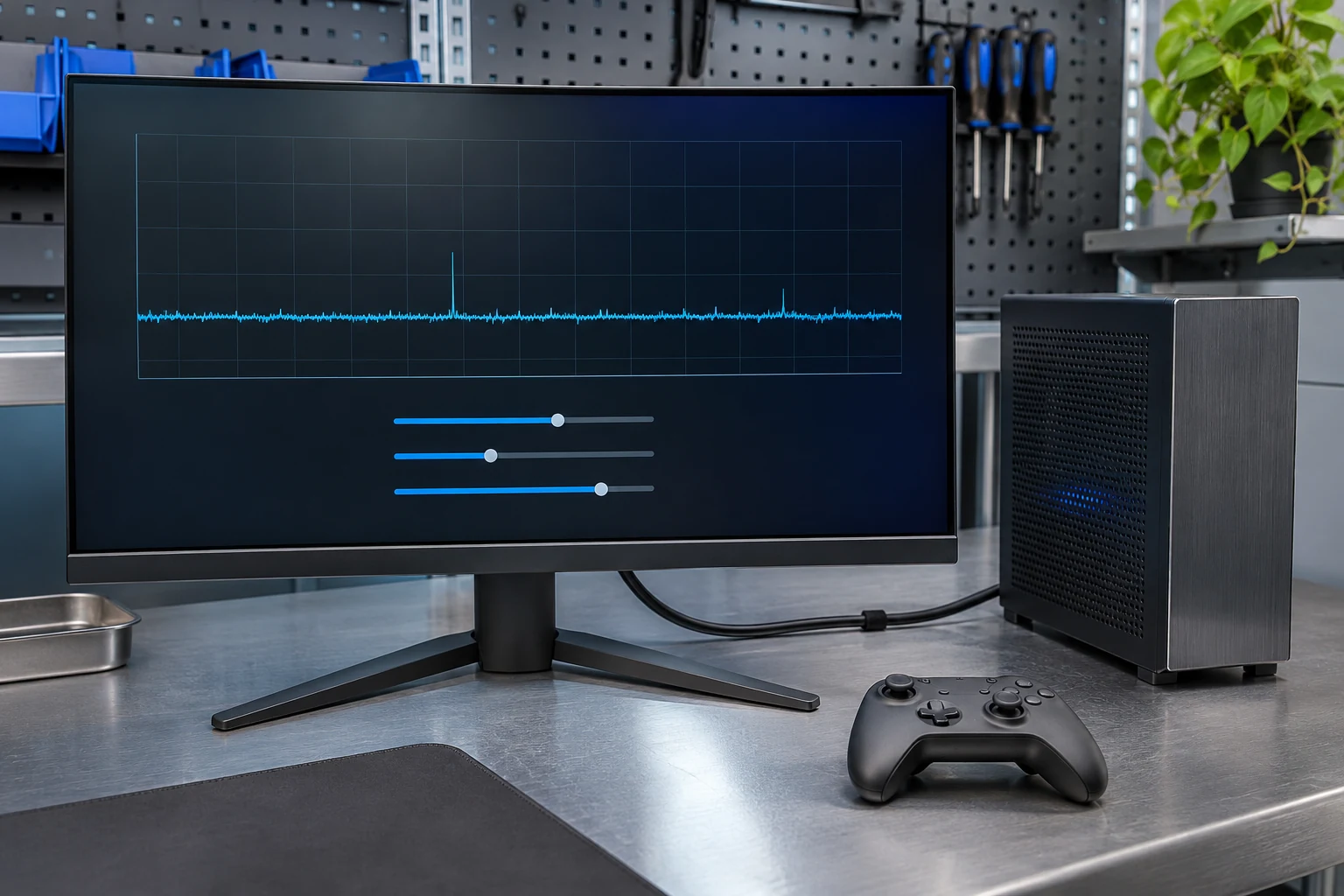
Ping is round-trip network time, measured in milliseconds. Jitter is variation in that time. Packet loss is missing traffic. A stable 40 ms connection can feel more predictable than one alternating between 15 and 100 ms. Match statistics in EA SPORTS FC, Rocket League, Apex Legends or another online game are more useful for this diagnosis than a speed-test headline.


- Compare regions: select a nearby Oceania or Australian server where the game offers that choice. Record the in-game ping; do not assume a region label guarantees a particular route.
- Test Ethernet: a wired connection avoids local Wi-Fi interference and generally gives steadier latency. It cannot eliminate the distance to the game server.
- Check wireless conditions: on supported equipment, 5 GHz or 6 GHz Wi-Fi can reduce congestion when signal strength is good. The 2.4 GHz band reaches farther but is more vulnerable to interference.
- Test under household load: large Steam downloads, streaming, cloud backups and other devices can create queueing delay. Router quality-of-service (QoS) or smart queue management (SQM), where supported and configured correctly, can reduce latency spikes under load.
- Inspect routing and reliability: repeated packet loss or evening-only spikes across several games point towards the router, access network or ISP. Compare results at different times and distinguish a local Wi-Fi issue from a wider network fault.
Fibre, fixed wireless and satellite connections have different latency and reliability characteristics across Aotearoa New Zealand. Moving from a fast fibre plan to an even faster fibre plan can make downloads quicker without materially changing idle ping to the same server. Fixed wireless or satellite can remain the practical option outside fibre coverage; a stable local network and sensible server selection still matter. More bandwidth is useful for patches, simultaneous streaming and cloud gaming, which sends a continuous video stream rather than only multiplayer inputs.
VPNs and “gaming ping reducers” are not universal shortcuts. An extra tunnel can add distance and processing; a better route is only demonstrated by lower in-game latency and fewer losses over repeated tests. DNS changes rarely alter the physical path of packets during an established match.
Controls, visibility and accessibility are part of optimisation
Competitive performance is not just graphics. A consistent mouse sensitivity and comfortable keybindings help more than chasing another two FPS once frame delivery is stable. Keep mouse DPI and in-game sensitivity recorded together; a value copied from another title does not necessarily translate because games use different sensitivity scales. Test raw mouse input where the title offers it.
Field of view (FOV) changes peripheral visibility and perceived movement speed. Wider FOV can expose more objects to render and may make distant targets smaller. Controller dead zones should be high enough to prevent stick drift but low enough to avoid unnecessary delay. Keep aim-assist, acceleration and response-curve settings consistent during a comparison so input behaviour does not masquerade as an FPS change.
Audio matters when positional cues drive decisions. Use the game's intended headphone or spatial-audio mode with a compatible headset rather than enabling several virtual surround effects at once. Subtitles, colour-vision options, UI scale and contrast settings can improve information recognition without imposing a meaningful graphics cost. In visually busy games, clear enemy outlines and readable interface elements can be more valuable than a maximum-effects preset.
Different games need different settings profiles
| Playing scenario | Priority | Recommended starting profile |
|---|---|---|
Competitive shooters: VALORANT, Counter-Strike 2, Fortnite   | Consistent 1% lows and response time | High refresh rate, sensible FPS cap, reduced costly effects, suitable low-latency mode, clear enemy visibility |
| Cinematic single-player or open-world games | Image quality without frame-time spikes | Native-resolution output, Quality upscaling when needed, selective ray tracing, stable 60 FPS or another achievable target |
| Older laptop or integrated GPU | Playable frame times within power and thermal limits | 1080p or lower internal resolution, reduced shadows and view distance, compatible upscaler, plugged-in performance profile |
| Online sports, racing and co-op | Stable rendering plus network consistency | Reliable FPS cap, VRR where supported, nearby server, wired network, monitoring for jitter and loss |
| Battery-powered handheld gaming | Balanced battery life and consistency | Moderate FPS cap, lower power target and refresh rate, compact render budget, power-saving profile |
A high-end GeForce RTX, Radeon RX or Intel Arc card does not justify one universal profile. Save settings per game and revisit them after major engine patches or substantial hardware changes.
Console settings: prioritise the screen and the game's mode
On PlayStation 5, Settings → Saved Data and Game/App Settings → Game Presets can set a preference for Performance Mode or Resolution Mode in games that support those choices. Settings → Screen and Video → Video Output exposes supported output resolution, 120 Hz, VRR, HDR and ALLM options. A 120 Hz output toggle does not make a 30 FPS game render at 120 FPS; the game and display must support the faster mode.
On Xbox Series X|S, review the console's TV and display options for supported resolution, 120 Hz output, VRR and HDR. Confirm the television's HDMI input, cable and Game Mode can handle the selected signal. If a game offers Performance and Quality modes, test both in motion instead of choosing from still screenshots. Cloud gaming adds streaming quality, bandwidth and network latency to the normal display and input chain.
When the usual fixes do not work
- Lowering resolution barely raises FPS: inspect CPU limits, frame caps, engine limits and background activity. A stronger GPU setting change cannot remove a CPU-side ceiling.
- Stutter begins after a patch: repeat the same scene after shader preparation and asset loading. Verify game files in Steam or Epic Games Launcher if the issue persists; avoid repeatedly wiping shader caches without evidence.
- FPS drops as the device heats up: compare early and late clock speeds and inspect cooling or power limits rather than adding more overclocking.
- Only one online game lags: compare its server region, maintenance status and packet-loss display with another title. System-wide driver changes are unlikely to resolve a remote server problem.
- Motion tears despite high FPS: confirm actual refresh rate, VRR support and the V-Sync/FPS-cap combination. Check that a cable or HDMI port is not limiting the display mode.
- Crashes appear after optimisation: undo recent changes one at a time, restore stable clocks, test memory stability and roll back a problematic driver when appropriate.
How to tell whether an optimisation worked
Record power mode and GPU temperature alongside the baseline measurements for the same scene. Compare image clarity and controller response as well as numbers.
A worthwhile change improves the metric tied to the original symptom without creating a worse trade-off. A rise from 95 to 110 average FPS is less useful when the 1% lows deteriorate and camera movement starts hitching. A connection with the same average ping but fewer large spikes can feel substantially better in a match. When a target is stable, further tweaking carries diminishing returns and additional risk.
Common gaming settings questions
Does lowering graphics quality always reduce stuttering?
No. It helps when the GPU cannot finish frames on time, but stutter can also come from shader compilation, CPU saturation, storage access, VRAM exhaustion or background activity. The frame-time graph and resource measurements determine which change is relevant.
Should FPS always be uncapped?
Uncapped rendering can reduce queueing under the right conditions, but it can also saturate the GPU, increase heat and power consumption, or push a VRR screen beyond its supported range. Compare a sensible cap, stable frame times and input response against uncapped performance in the same game.
Will a faster broadband plan fix lag in New Zealand?
Only when bandwidth saturation or congestion is part of the problem. Server distance, ISP routing, local Wi-Fi, jitter and packet loss remain even with a high advertised download speed.
Is there a single best optimisation tool?
No single tool covers every bottleneck. Windows Task Manager exposes competing processes; GPU vendor software exposes graphics options and telemetry; Intel PresentMon and in-game counters help with frame timing; game network displays expose ping and loss.